The four screens
The app is built around four top-level screens:
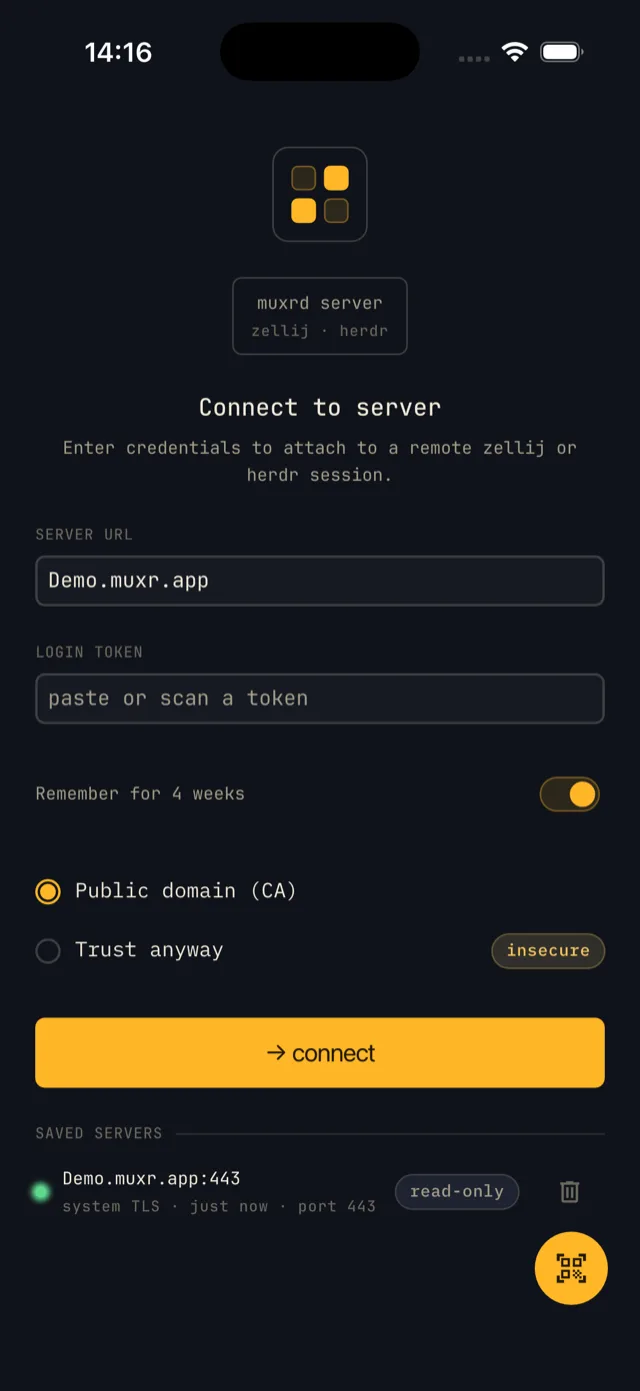
- Connect — enter server credentials or scan a QR code to authenticate.
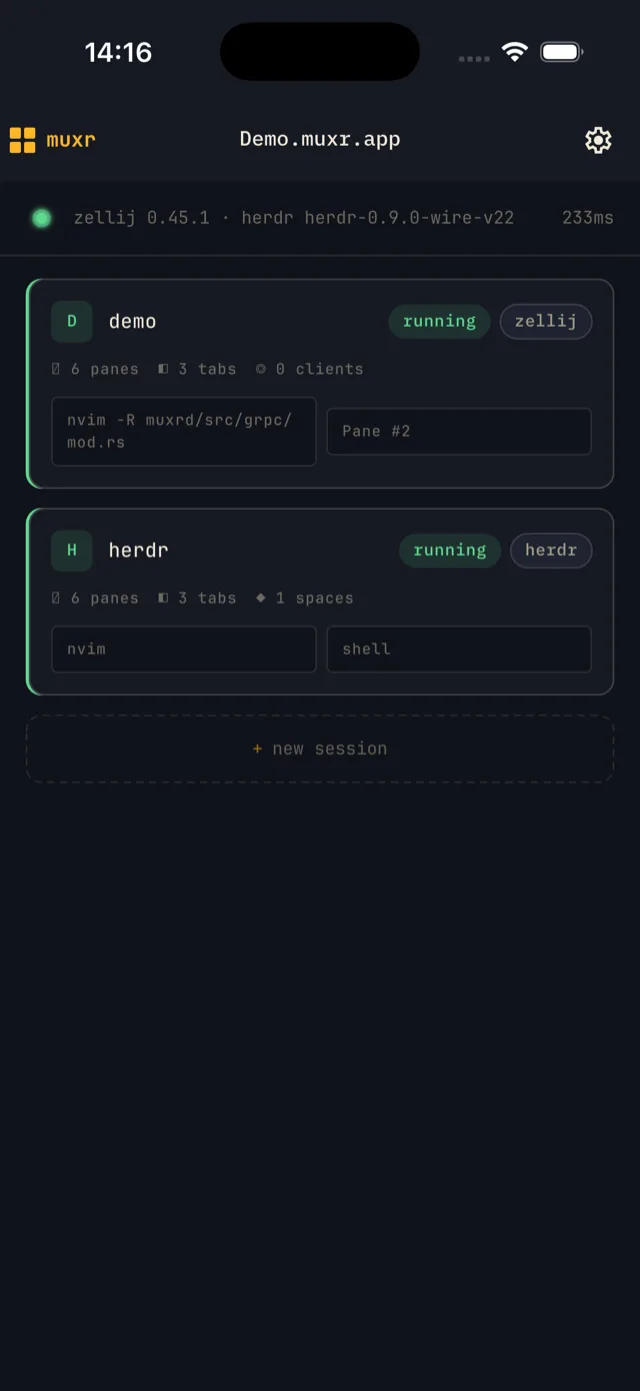
- Sessions — list running sessions; create, rename, or kill them. (On a herdr backend this is the single herdr session, whose workspaces appear as switchable spaces in the Terminal screen.)
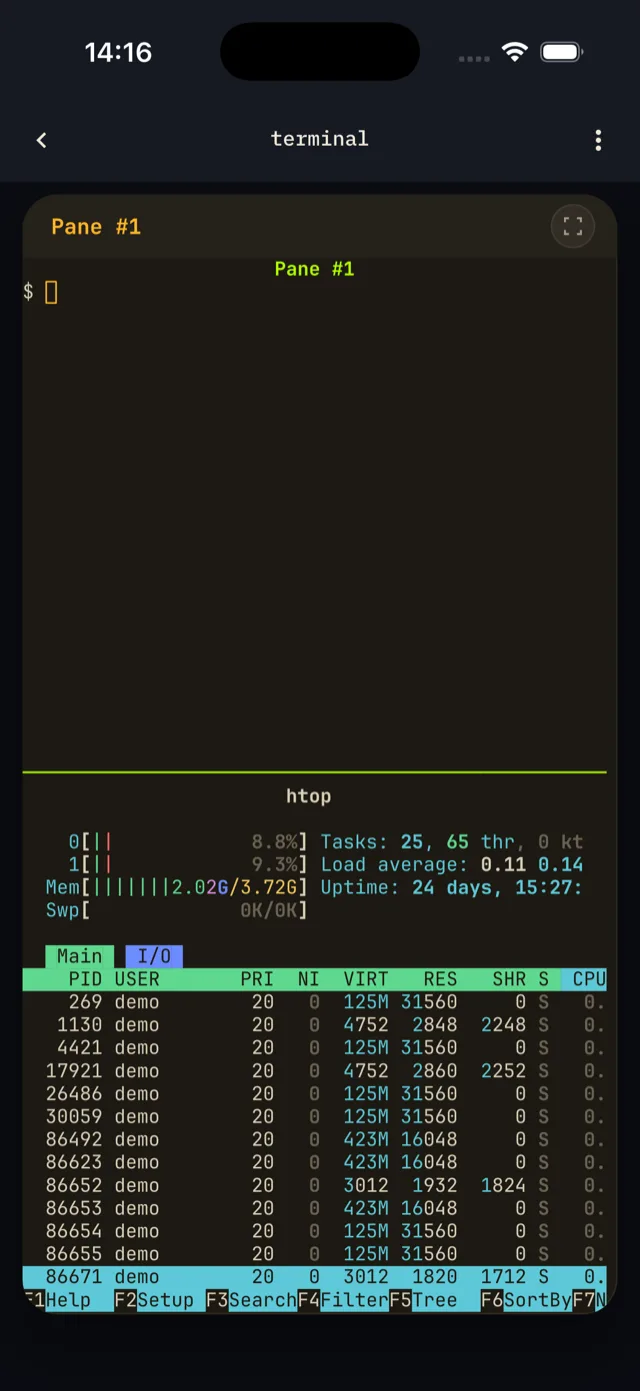
- Terminal — the live terminal view with tab bar, pane strip, and command center.
- Settings — manage tokens, saved servers, appearance, and preferences.
Connecting
There are three ways to connect from the Connect screen:
- Manual — type the server URL (
host:port) and paste a bearer token, then tap Connect, and pick a trust mode — Public domain (CA) for a CA-signed server, or Trust anyway (marked insecure) for development. - QR scan — tap the FAB on the Connect screen to open the camera scanner. Scan a QR code generated by
muxrctl; the connection is cert-fingerprint-pinned automatically with no further prompts. - Saved-server pill — tap a saved server pill below the form to pre-fill its credentials. If a biometric-protected token is stored, a biometric prompt unlocks it for one-tap reconnect.
The Remember for 4 weeks toggle keeps the login valid for four weeks instead of the default few minutes.
Sessions
The Sessions screen lists all running sessions on the connected server.
- Tap a session card — opens that session in the Terminal screen.
- Long-press a session card — shows a menu with options to rename or kill the session. Killing a session asks for confirmation before proceeding.
To create a new session, use the new-session affordance (the dashed “+ new session” button on phone, or the create button on the tablet sessions view) and enter a name in the dialog.
Terminal gestures
The terminal view renders all tiled and floating panes in the active tab. Touch gestures are mapped as follows:
| Gesture | Target | Effect |
|---|---|---|
| Tap | An unfocused pane | Focus that pane (sends a FocusPane RPC) |
| Tap | The focused pane | Opens the soft keyboard for input |
| Double-tap | Any pane | Toggles server-side pane fullscreen (TogglePaneFullscreen RPC) |
| Long-press | Terminal text | Starts text selection — see Copy text below |
| Back gesture | — | Exits client-side immersive mode first; if not immersive, prompts to detach from the session |
Copy text
Long-press any text in the terminal to select the word under your finger; keep holding and drag to extend the selection word by word. A small magnifier loupe floats above your finger while selecting, so your thumb never hides the text. Release to show a floating Copy chip — tap it to put the selected text on the system clipboard, or tap anywhere else to dismiss the selection.
Selection is entirely client-side (it reads the rendered terminal buffer, no server round-trip), so it works on every backend and even in read-only sessions.
The command center
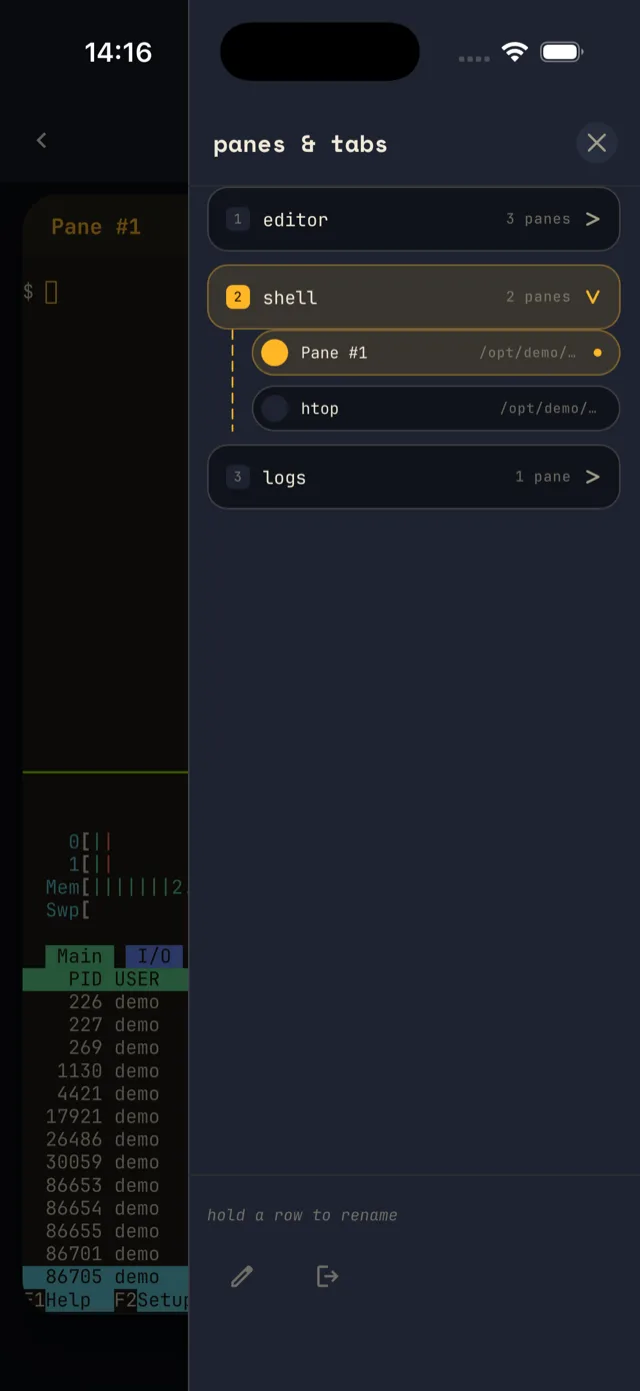
The command center is the primary affordance for tab and pane management within the Terminal screen.
- Phone — a persistent FAB in the lower corner opens a modal bottom sheet.
- Tablet — a persistent 220 px left pane rail is always visible alongside the terminal.
From either the sheet or the rail:
- Tab pills — tap to switch to that tab (
GoToTabRPC). - + tab — adds a new tab.
- Pane rows — tap a pane row to focus it.
- New pane card — tap to create a tiled pane; long-press to create a floating pane.
- Long-press a tab or pane row — shows a contextual menu with rename and close options.
All create, rename, and close affordances are hidden in the command center when connected with a read-only token.
Tabs & panes
All tab and pane lifecycle operations are accessible from the command center (bottom sheet on phone, pane rail on tablet).
- Create tab — tap the + tab chip.
- Rename tab — long-press a tab pill → Rename.
- Close tab — long-press a tab pill → Close.
- Create pane (tiled) — tap the new pane card.
- Create pane (floating) — long-press the new pane card.
- Rename pane — long-press a pane row → Rename.
- Close pane — long-press a pane row → Close.
All mutating affordances (create, rename, close) are hidden when connected with a read-only token.
Keyboard bar
A modifier key bar sits above the soft keyboard, providing keys that are absent or inconvenient on mobile keyboards.
| Key | Sequence sent | Notes |
|---|---|---|
| Ctrl | — | One-shot latch: applies to the next key — bar or soft keyboard — then clears |
| Alt | — | One-shot latch: applies to the next key — bar or soft keyboard — then clears |
| Esc | \x1b | Escape character |
| Tab | \t | Horizontal tab |
| ↑ | \x1b[A | Cursor up |
| ↓ | \x1b[B | Cursor down |
| → | \x1b[C | Cursor right (forward) |
| ← | \x1b[D | Cursor left (back) |
| PgUp | \x1b[5~ | Page up |
| PgDn | \x1b[6~ | Page down |
| Del | \x1b[3~ | Forward delete |
Fullscreen vs immersive
Muxr has two distinct fullscreen concepts that are independent of each other:
Server-side pane fullscreen
A zellij RPC (TogglePaneFullscreen) that expands one tiled pane to fill its tab area on the server. Other connected clients (desktop zellij) see the same state. Triggered by double-tapping a pane. This is a mutating operation and is blocked in read-only sessions.
Client-side immersive mode
Hides the OS navigation bar and the app's own chrome via the platform's immersive mode. This is display-only on the client and does not affect the server or other clients. Available even in read-only sessions. The back gesture exits immersive mode before triggering any detach prompt.
Tablet differences
Tablet-specific layout kicks in at the 840 dp breakpoint:
- A persistent 220 px left pane rail replaces the phone's FAB + bottom sheet in the Terminal screen.
- In client-side immersive mode the pane rail collapses to a 56 px icon mini-rail, leaving maximum space for the terminal.
- Connect screen renders in a two-column layout.
- Sessions screen uses a master-detail layout.
- Settings screen uses a master-detail layout.
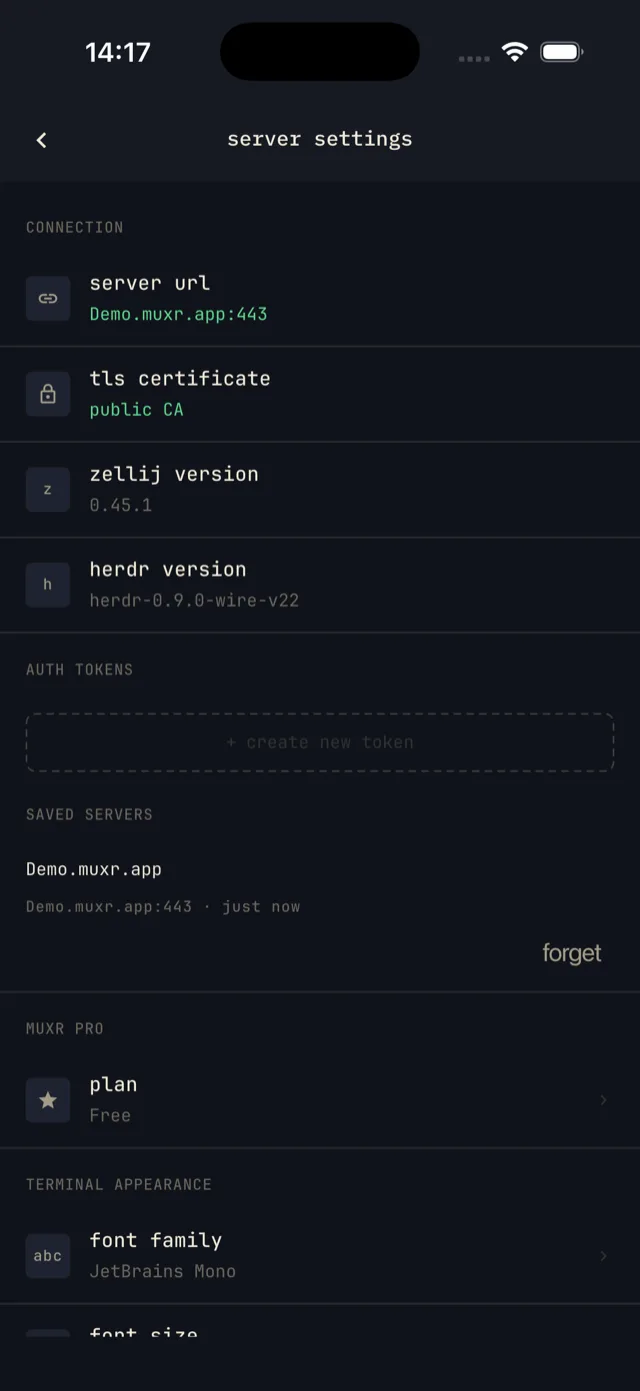
Settings
The Settings screen is divided into several groups:
- Connection info — shows the connected server endpoint, its TLS trust label, and the server/backend versions.
- Tokens — create new auth tokens and revoke existing ones on the server.
- Saved servers — manage saved server profiles and their biometric-protected credentials.
- Muxr Pro — shows your plan (Free or Pro) and opens the upgrade.
- Appearance — font family (downloadable from the server's font catalog), font size, cursor style, and the mac-option-as-meta toggle for Option key behavior on iOS/macOS.
- Bell notification — toggle terminal bell notifications on or off.
- In-app log viewer — access the talker log stream for diagnostics without leaving the app.
- Disconnect — detach from the current session and return to the Connect screen.
Read-only mode
When connected with a read-only token, the keyboard bar is disabled (no input is sent to the server) and all create, rename, close, and server-side pane fullscreen affordances are hidden throughout the app. Client-side immersive mode remains available, and so does text selection and copy — long-press works as usual, since selection never sends anything to the server.